
Segmentation
Segmentation lets you define audiences from your unified data lake — choosing a template, configuring the rules, and creating a segment. Segments are managed from the Audiences page under Platform in Blotout Cloud. Once created, Airflow provisions a sync pipeline automatically. To push audiences to Meta, Klaviyo, or TikTok, continue to Activation.
View your segments
Section titled “View your segments”Go to Blotout Cloud, select your App ID, Tag, and Team from the header dropdowns, then open Audiences from the left sidebar under Platform. The dashboard shows summary metrics — active segments, users pushed, and last sync times — along with a table of all segments. Each row displays the segment name, category, audience size, activated channels, labels, and sync status.
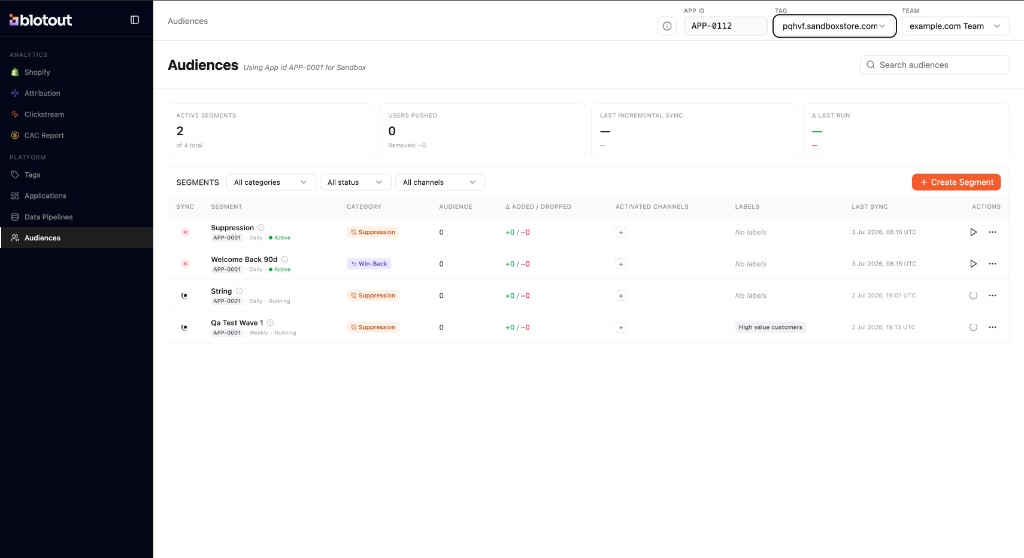
To create a new segment, click + Create Segment in the top right.
Choose a template
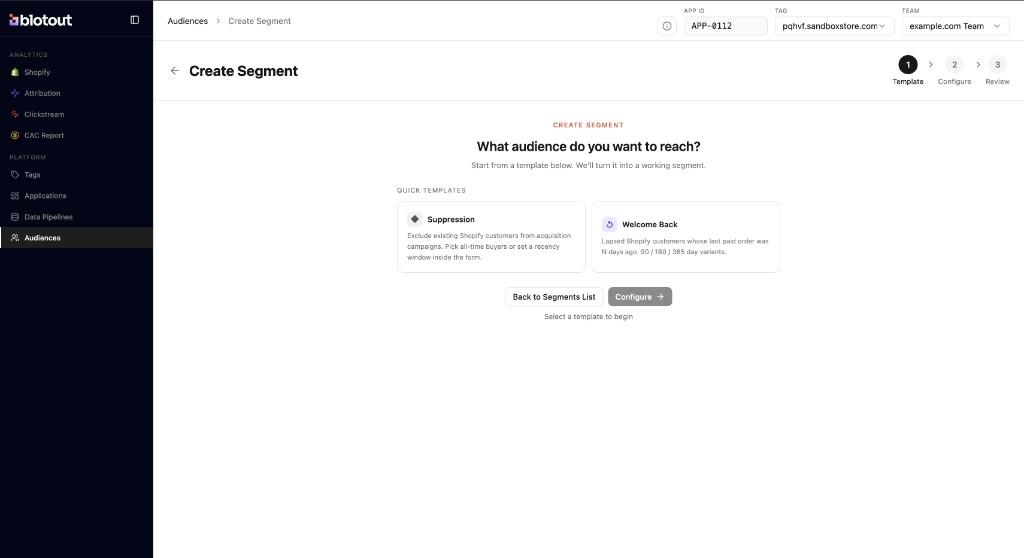
Section titled “Choose a template”The create flow has three steps: Template, Configure, and Review. On the template step, pick a starting point that matches your use case:
- Suppression — Exclude existing Shopify customers from acquisition campaigns. Choose all-time buyers or set a recency window inside the form.
- Welcome Back — Target lapsed Shopify customers whose last paid order was N days ago. Supports 90, 180, and 365 day variants.
Select a template and click Configure to continue.
Configure the segment
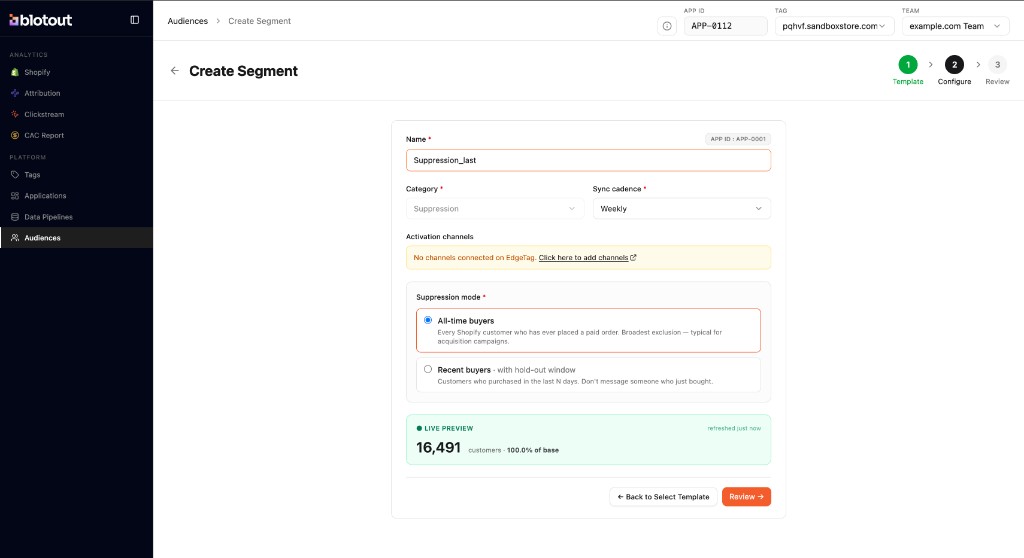
Section titled “Configure the segment”On the configure step, fill in the segment details:
- Name — A unique name for the segment (for example,
Suppression_last). - Category — The segment category (for example, Suppression or Win-Back).
- Sync cadence — How often the segment refreshes (Daily or Weekly).
- Suppression mode (for Suppression templates) — Choose All-time buyers to exclude every customer who has ever placed a paid order, or Recent buyers with hold-out window to exclude customers who purchased in the last N days.
A live preview at the bottom of the form shows the estimated audience size and percentage of your base. When the configuration looks correct, click Review.
Review and create
Section titled “Review and create”The review step summarizes your segment definition — estimated size, data sources, sync cadence, and description. Click Edit to go back and change any setting, or click Create & start syncing to save the segment and begin the first sync.
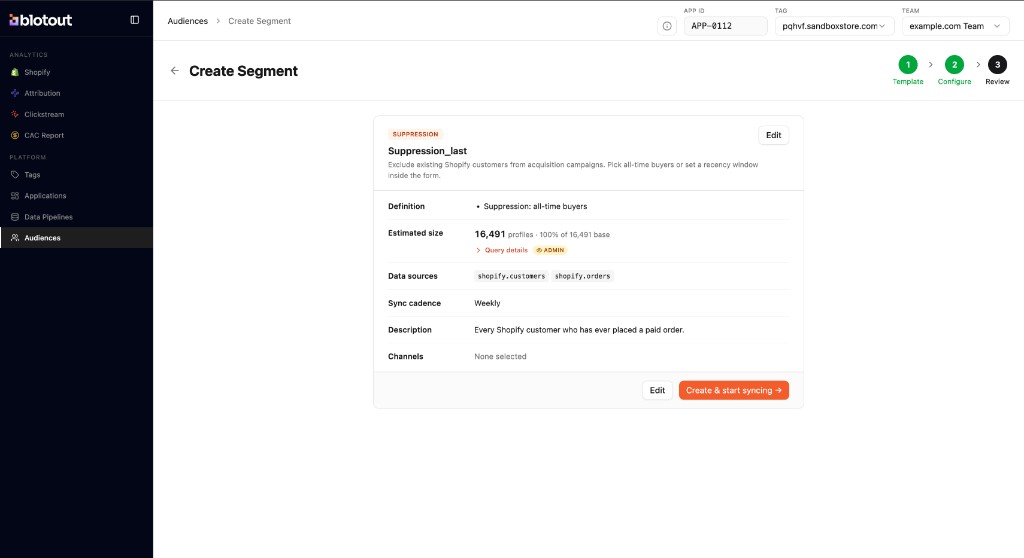
Once created, the segment appears in the Audiences table and Airflow provisions the corresponding sync pipeline automatically.