Application
Creating an app/site
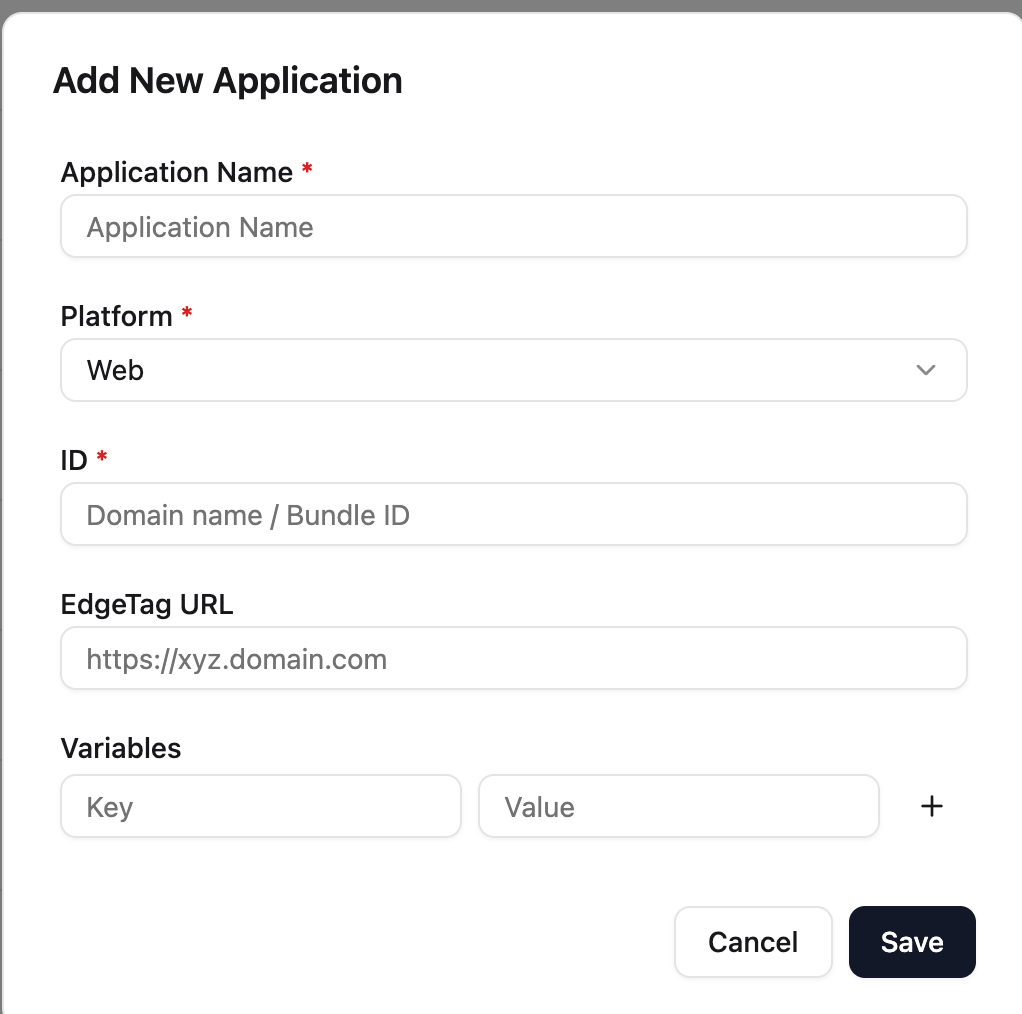
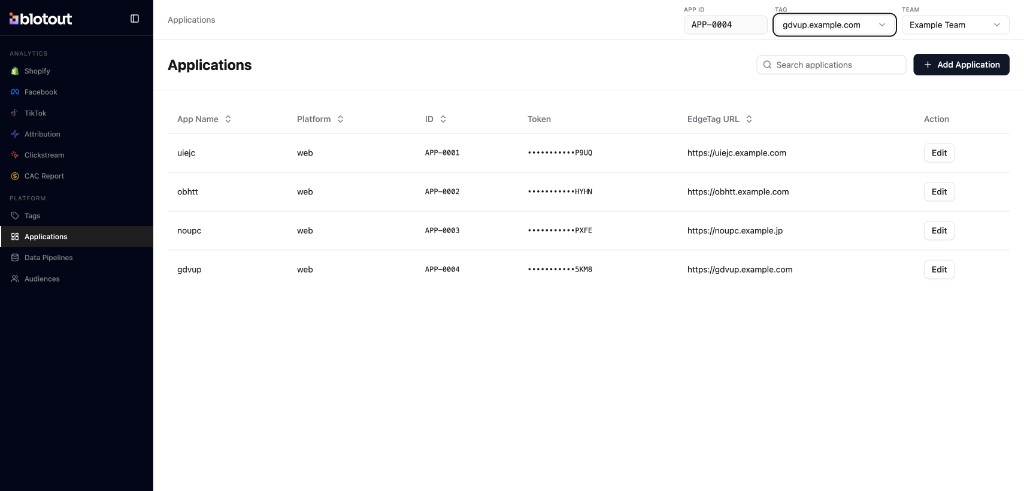
Section titled “Creating an app/site”Go to Blotout Cloud and open the Applications tab from the left sidebar under Platform. In the top bar, select the Tag and Team for the environment where you want to create the application, then click Add Application and fill in the required details.
View your applications
Section titled “View your applications”Once an application is created, it appears in the Applications table on the same page. Use the Tag and Team selectors in the top bar to switch between environments — the table updates to show only applications for the selected tag.
Each row lists the application details you need for setup and integration:
| Column | Description |
|---|---|
| App Name | The name you gave the application when creating it |
| Platform | The platform type (for example, web or android) |
| ID | The unique application ID (for example, APP-0001) — use this when connecting EdgeTag or the SDK |
| Token | The masked API token for the application |
| EdgeTag URL | The EdgeTag endpoint URL assigned to this application |
| Action | Click Edit to update application settings or view the full API token |
Use the search box to filter applications by name. The APP ID field in the top bar reflects the currently selected application context.
Connecting EdgeTag provider
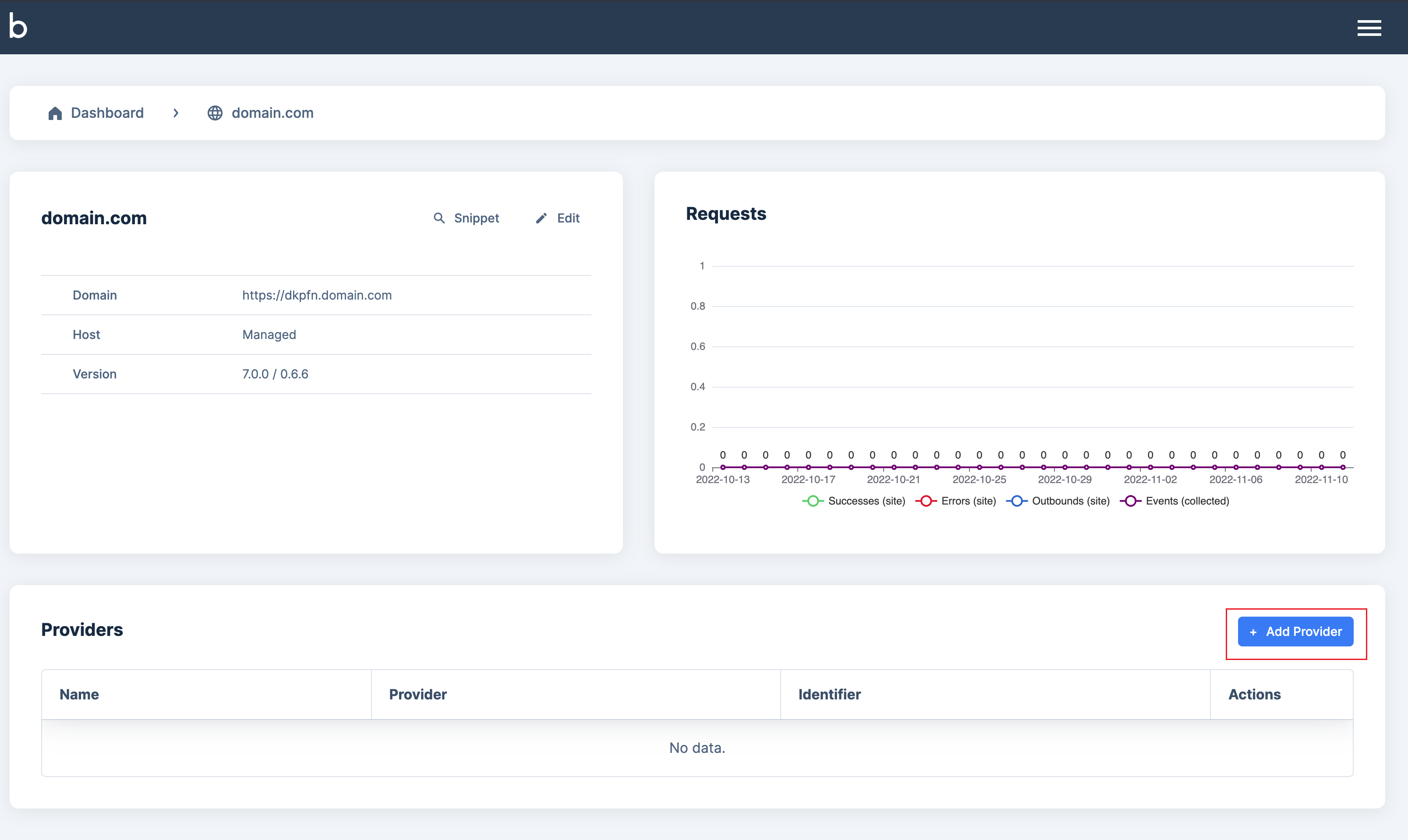
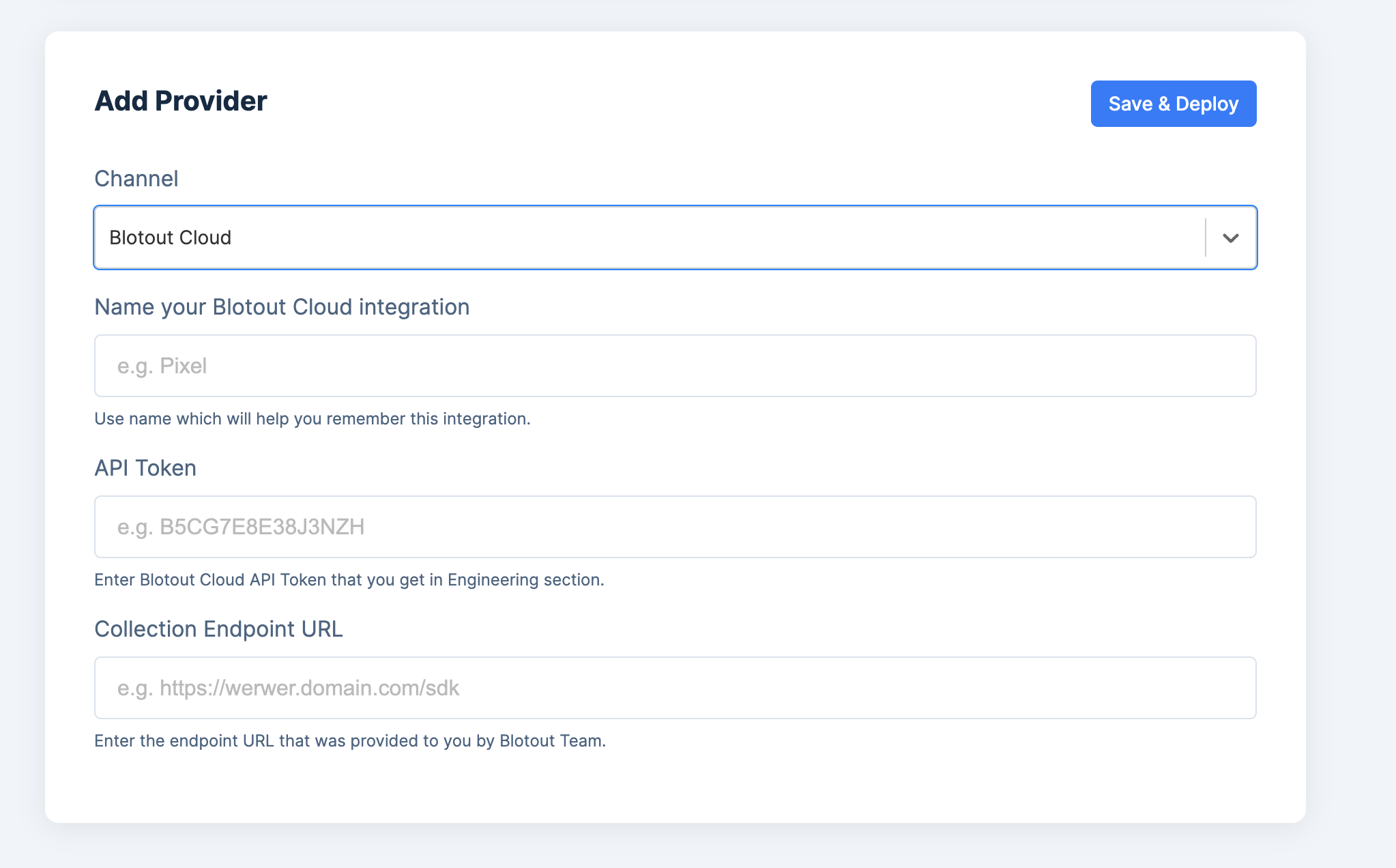
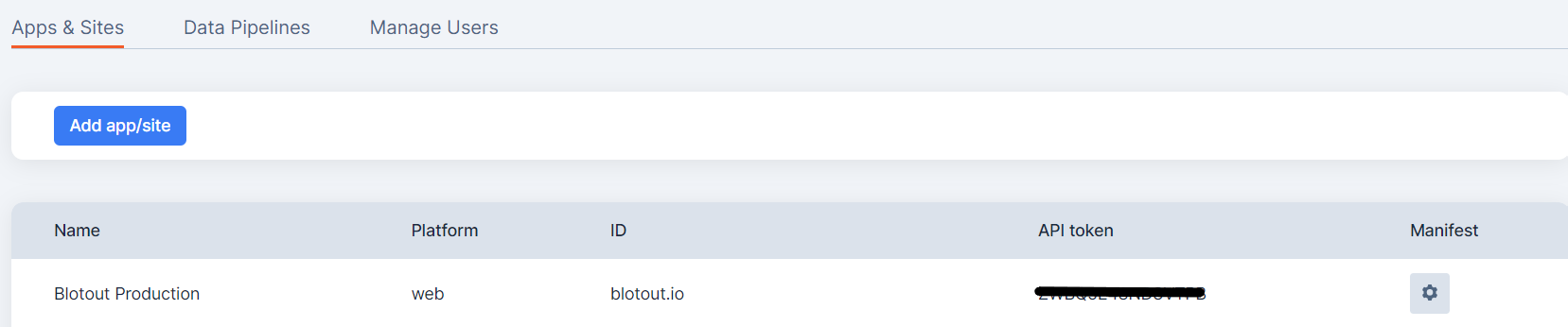
Section titled “Connecting EdgeTag provider”After the app / site is created and you are provided with the API token you can connect the EdgeTag provider. The provider will be connecting the SDK running in the infrastructure to your domain.
- Go to EdgeTag
- Add a tag, for tag details go inside Engineering tab.
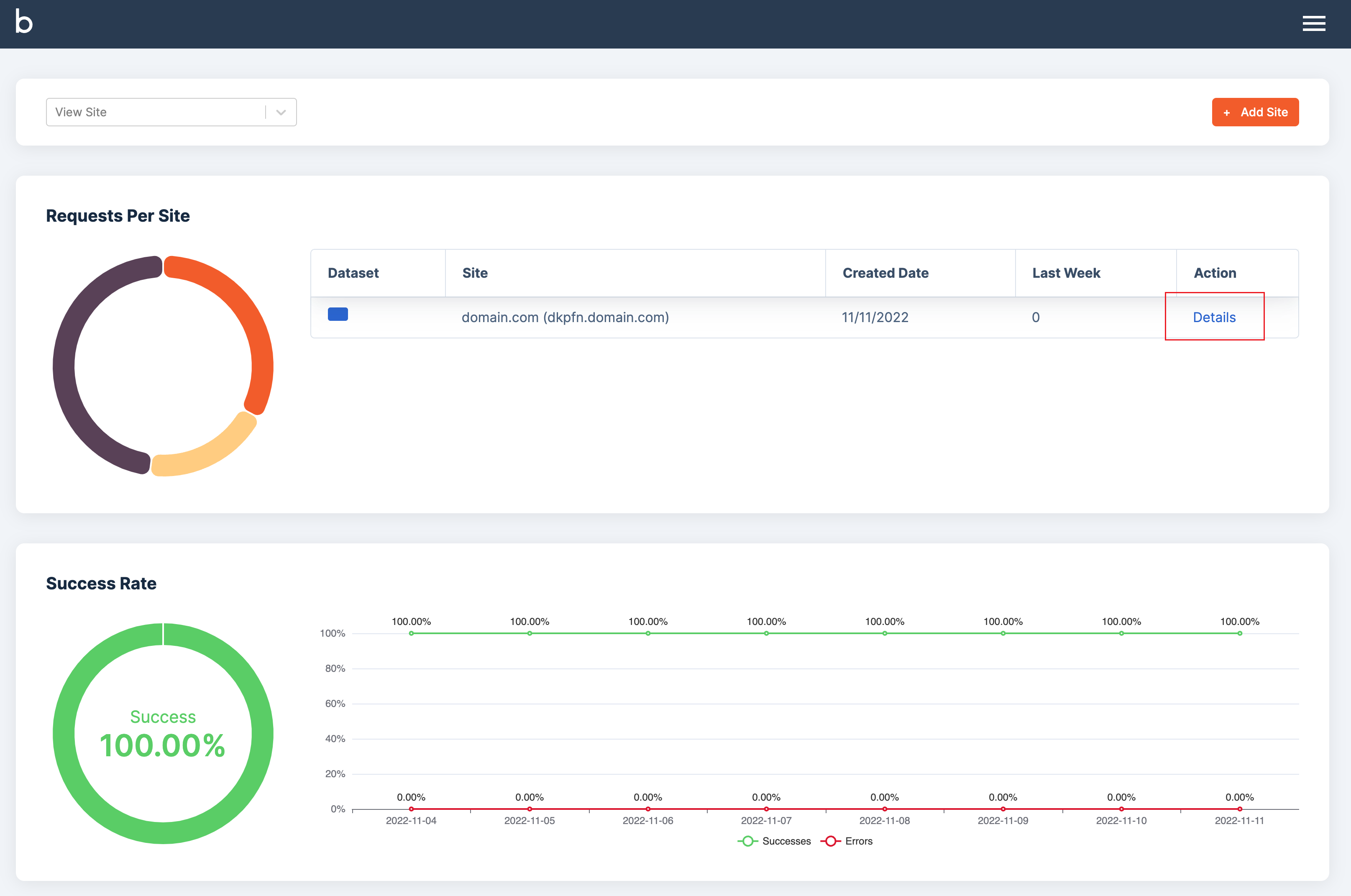
- Create a provider. Enter the sdk URL and app-id. The app-id is taken from the web application, and the SDK URL will be the event collector URL given at the time of installation.