
Slack Integration
- If you’re not a Workspace Admin, we recommend getting permission from a Workspace Owner first. Then, ask them to elevate your permissions to the Admin level.
- Open the Slack workspace and navigate to [Workspace name] > Setting & administration > Customize [Workspace name].
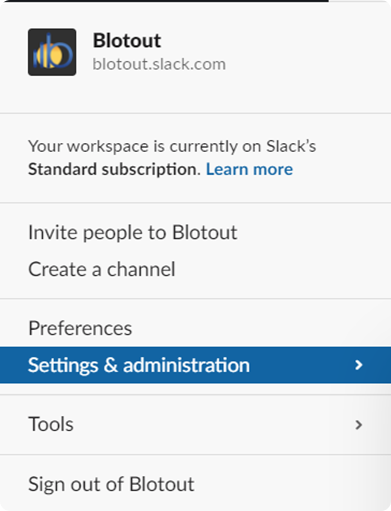
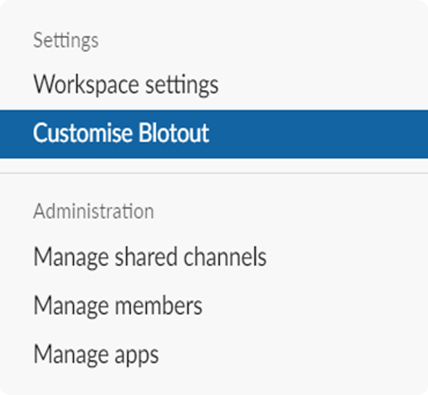
- In the new browser page that opens, navigate to Menu > Configure apps.
- Select Build in the top right corner.

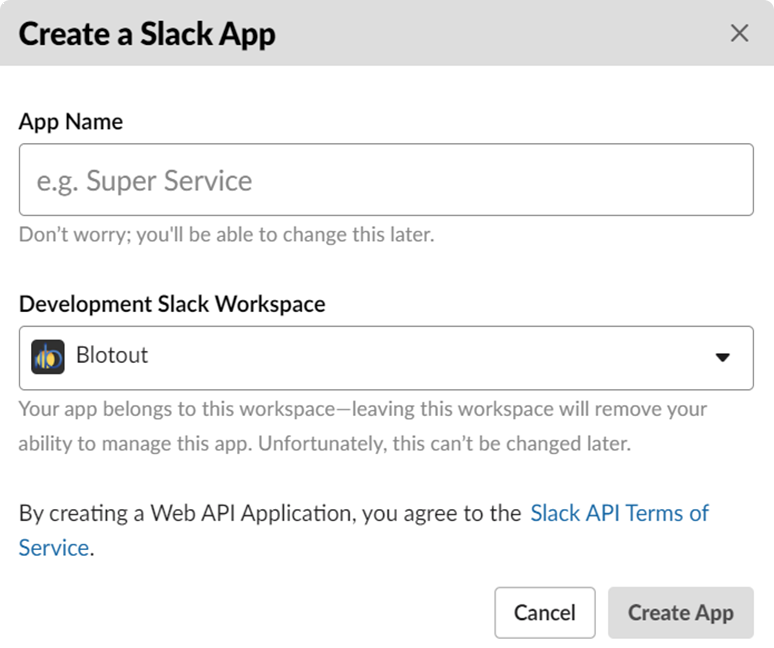
- Create a new app, give your app a memorable name, and select the workspace you want the app to have access to.
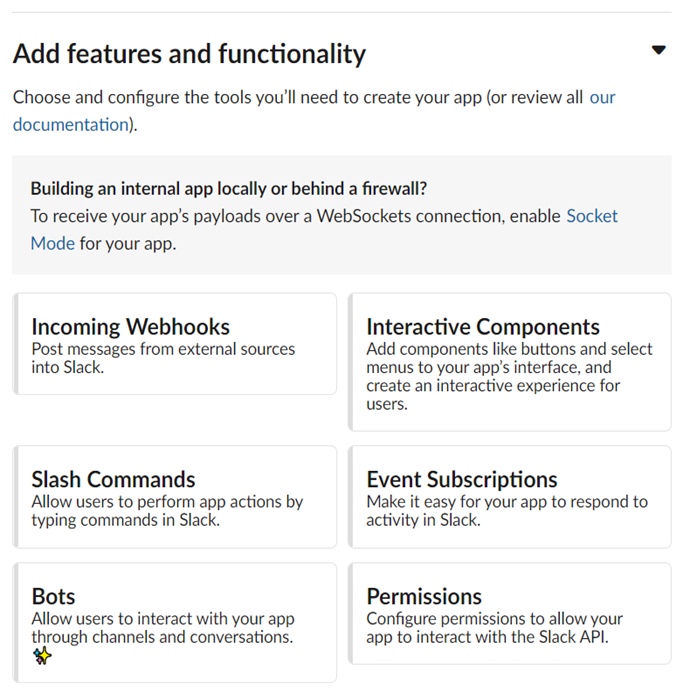
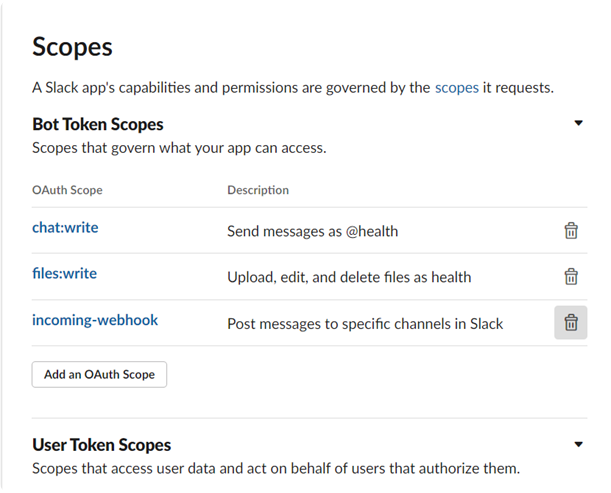
- Let’s now give this app required permissions. Under Add features and functionality, select Permissions.
- We recommend giving the following permissions to this app.
- Then, let’s add the app to the workspace by clicking Install App to Workspace.
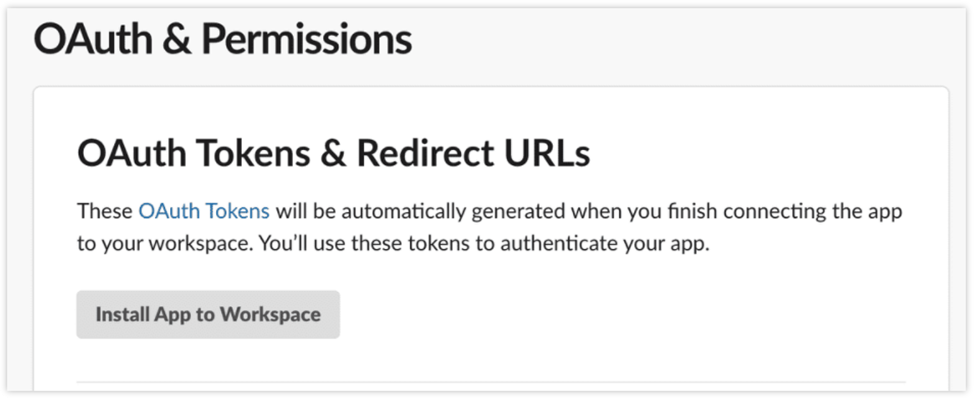
Once it’s installed, you’ll see a Bot User OAuth Access Token. This is what we need for the Blotout system to be able to send reports (Dashboards/Charts) to slack channel. Please share/configure this token in Blotout Infrastructure. Now we need this app to all of the channels we want to publish the report. Open respective channel in your Slack community and run the following command and that allows the application to publish the reports:
/invite @[app_name]