
Login
After you have installed and enabled the MCP server in Claude Desktop, log in to connect your Blotout Cloud account. Authentication uses OAuth via EdgeTag — your session is tied to the email address you sign in with.
Request login
Section titled “Request login”In the Claude Desktop chat, send a message to log in with your Blotout Cloud email address:
login blotout using [email protected]Replace [email protected] with the email configured for your Blotout Cloud account.
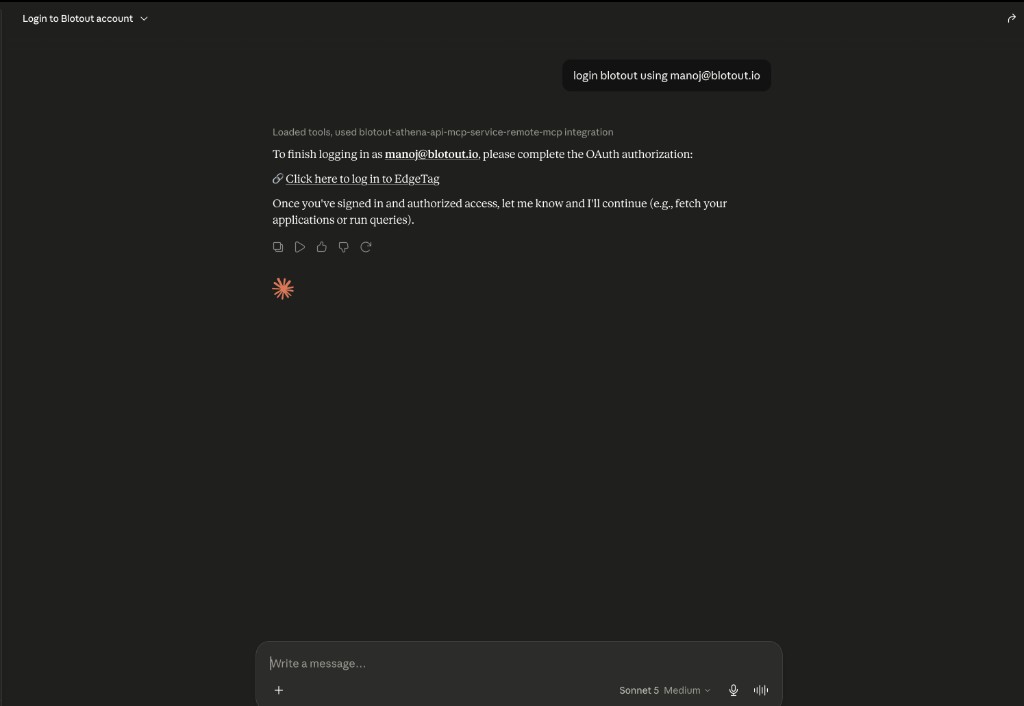
Claude loads the blotout-athena-api-mcp-service-remote-mcp integration and returns an OAuth authorization link. Click Click here to log in to EdgeTag to open the sign-in flow in your browser.
Authorize access
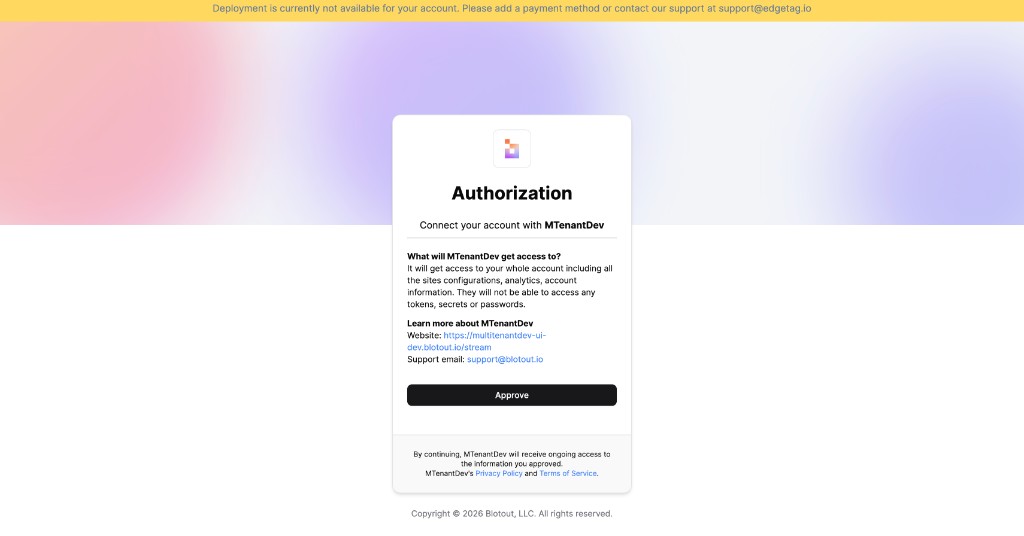
Section titled “Authorize access”On the Authorization page, review the permissions requested by the MCP server and click Approve to grant access to your account.
Complete authentication
Section titled “Complete authentication”After approving, you will see a confirmation that OAuth authentication is complete. Close the browser window and return to Claude Desktop.
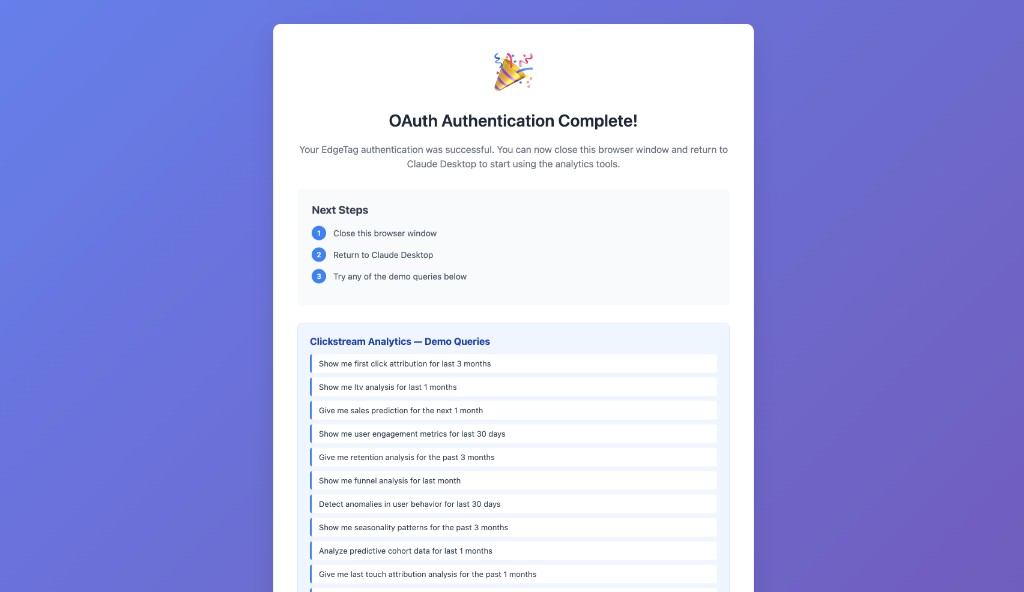
Let Claude know once you have finished signing in — for example, reply with “done” or ask it to continue. You can then start running analytics queries against your data lake.
Verify your session
Section titled “Verify your session”To confirm you are logged in, ask Claude to fetch your applications:
get application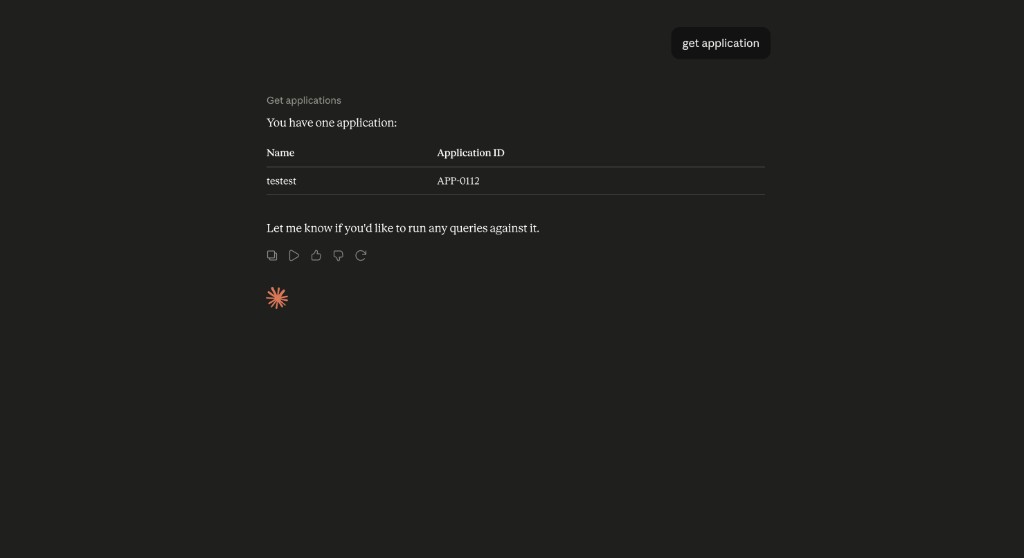
Claude returns a table with your application name and Application ID. You are now authenticated and can use any of the MCP tools — run clickstream queries, explore pipeline data, or generate dashboards using natural language prompts.